WordPress Bug Fixes & Emergency Support: How to Fix Critical Errors Fast (2025 Guide)
Your WordPress site just crashed. Maybe it’s showing a blank white screen, or there’s an error message you’ve never seen before. Every second it stays down, you’re losing visitors, sales, and trust.
At WebFixHQ, we deal with these emergencies daily, and we’re sharing exactly how to handle the most common critical errors. Whether you fix it yourself or need emergency support, this guide shows you what to do right now.
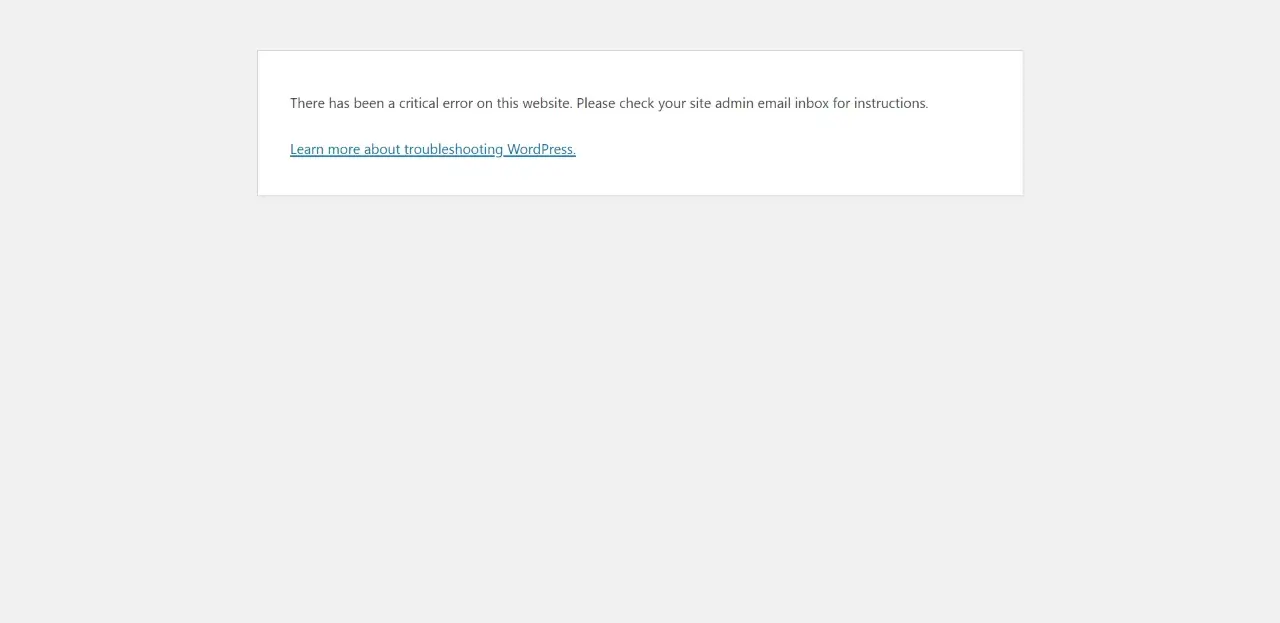
What Is the WordPress White Screen of Death (And Why It Happens)
The White Screen of Death is exactly what it sounds like. Your website displays nothing but a blank white page. No error message. No content. Just white.
This happens because of:
- PHP memory running out from heavy plugins or themes
- Two plugins fighting with each other
- Your theme not working with your WordPress version
- Damaged files from a failed update
The damage happens fast. Visitors leave in 3 seconds. Google starts pushing your site down in rankings. Potential customers think you went out of business.
If you’re dealing with this right now and need it fixed immediately, our WordPress Emergency Support team can get your site back online in under 2 hours. We handle these WordPress emergencies and know exactly what to do.
How to Fix WordPress Bugs: Step by Step Troubleshooting
Step 1: Turn On WordPress Debug Mode to See What’s Actually Wrong
WordPress hides errors by default. You need to see what’s breaking before you can fix it.
Here’s how to enable debugging:
- Connect to your site with FTP or use your hosting file manager
- Find the wp-config.php file in your main folder
- Add this code right before the line that says “That’s all, stop editing!”:
define('WP_DEBUG', true);
define('WP_DEBUG_LOG', true);
define('WP_DEBUG_DISPLAY', false);
This saves all errors to a file at wp-content/debug.log. Check that file to see exactly which plugin, theme, or code is causing the problem.
Important: If you can’t access your WordPress admin, you’ll need FTP or your hosting control panel. This is the only way to fix things when everything else is locked out.
Step 2: Fix Plugin Conflicts (The Number One Cause of WordPress Crashes)
Over 60% of WordPress bugs come from plugin conflicts. Two plugins try to use the same thing, and your site breaks.
How to find the problem plugin:
- Connect via FTP or your hosting file manager
- Go to the folder: /wp-content/plugins/
- Rename the plugins folder to plugins-disabled
- Try loading your site. If it works, a plugin is the problem
- Change the name back to plugins
- Now rename each plugin folder one at a time
- Check your site after each rename to find which one breaks it
If you can still access wp-admin: Go to Plugins, turn off all plugins, then turn them back on one by one. Test after each one.
Once you find the bad plugin, you can:
- Update it if there’s a new version
- Replace it with a different plugin
- Contact the developer to report the bug
Playing it safe? Plugin conflicts can create bigger problems if you’re not careful. At WebFixHQ, we test fixes in a safe copy of your site first, so nothing gets worse. See our emergency fix plans.
Step 3: Fix Theme Errors and Broken Designs
Your content loads but your site looks terrible? Missing styles, broken layout, or looks like a website from 1999? That’s a theme problem.
This happens when:
- CSS files don’t load properly
- Theme files got damaged during an update
- Your theme doesn’t work with your WordPress version
- File permissions are set wrong
Quick theme fix:
- Log into WordPress admin if you can
- Go to Appearance then Themes
- Turn on a default WordPress theme like Twenty Twenty-Four/Twenty-Five
- If your site looks normal again, your theme has the problem
Can’t access admin? Use FTP instead:
- Go to /wp-content/themes/
- Rename your current theme’s folder
- WordPress will switch to a default theme automatically
If switching themes fixes your design, you need to either repair your theme or get a better one. Contact the theme developer or switch to a more reliable theme that gets regular updates.
Step 4: Fix Database Connection Errors
Seeing “Error establishing a database connection”? WordPress can’t talk to your database. This is serious.
Why this happens:
- Wrong database login details in wp-config.php
- Database server is down or overloaded
- Database tables got corrupted
- Your hosting account hit its limits or got suspended
How to fix it:
- Check your database credentials in wp-config.php:
define('DB_NAME', 'your_database_name');
define('DB_USER', 'your_database_user');
define('DB_PASSWORD', 'your_database_password');
define('DB_HOST', 'localhost');
- Contact your hosting provider to check if the database server is working
- Try repairing your database by adding this to wp-config.php:
define('WP_ALLOW_REPAIR', true);
Then visit: yourdomain.com/wp-admin/maint/repair.php
- If nothing works, restore from your last backup
Warning: Database problems can destroy your data permanently if you handle them wrong. Always backup first. If you don’t have a recent backup, get professional help immediately. Our Complete Protection plan includes safe database repair with guaranteed data protection.
Quick Fixes for Common WordPress Bugs
Fix HTTP Errors When Uploading Images
Getting “HTTP error” when you try to upload photos? This usually means server settings or file permission problems.
Try these solutions:
- Check file permissions: /wp-content/uploads/ should be 755 or 775
- Increase PHP memory in wp-config.php:
define('WP_MEMORY_LIMIT', '256M');
- Turn off plugins temporarily to test
- Try uploading smaller images (under 2MB)
Repair Broken Images
Images showing as broken icons? Several things can cause this.
Why images break:
- Wrong file paths after moving your site
- Image files got deleted by accident
- File permissions are incorrect
- Server has MIME type problems
Fix broken images:
- Use a plugin like Regenerate Thumbnails
- Check that image URLs are correct in your media library
- Verify file permissions on /wp-content/uploads/ (should be 755)
- Add proper MIME types to .htaccess:
AddType image/png .png
AddType image/jpeg .jpg .jpeg
AddType image/gif .gif
Increase Memory Limit for Performance Problems
If you see “memory size exhausted” errors, you need more PHP memory.
Try these methods in order:
- In wp-config.php (easiest method):
define('WP_MEMORY_LIMIT', '256M');
define('WP_MAX_MEMORY_LIMIT', '512M');
- In .htaccess (if method 1 doesn’t work):
php_value memory_limit 256M
- Contact your hosting if neither works. You might need a hosting upgrade.
How to Prevent WordPress Bugs Before They Happen
Fixing problems after they happen is stressful and expensive. Smart website owners stop problems before they start.
Keep Everything Updated
Why updates prevent bugs:
- Security patches stop hackers
- Bug fixes solve known problems
- Compatibility updates prevent conflicts
- Performance improvements keep your site fast
Safe update process:
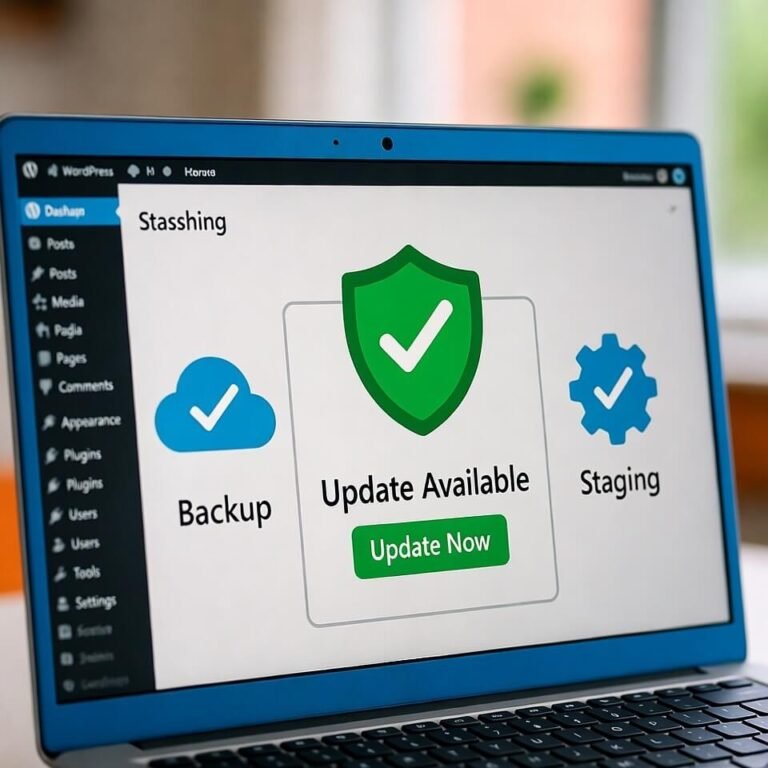
- Backup first. Always. No exceptions. Use UpdraftPlus, BackupBuddy, or your host’s backup tool
- Update in this order: WordPress core first, then themes, then plugins
- Test on staging if you have a staging site
- Update one thing at a time so you can spot problems quickly
- Check your site immediately after each update
Pro tip: Turn on automatic updates for small WordPress versions and security patches. Handle major updates and theme/plugin updates manually so you stay in control.
Set Up Solid Backups
Backups are your insurance against disaster. When a fix goes wrong or a hack destroys your site, backups let you restore everything fast.
Essential backup rules:
- How often: Daily for active sites, weekly for static sites
- Where to store: Off your server (Dropbox, Google Drive, cloud storage)
- How many: Keep at least 30 days of backups
- Test them: Make sure backups actually work by testing restoration every 3 months
- Automate it: Use UpdraftPlus, BackWPup, or BlogVault
What to backup:
- All WordPress files (core, themes, plugins)
- Database (all your content, settings, users)
- Media library (images, videos, files)
- Config files (wp-config.php, .htaccess)
WordPress Security to Stop Bugs and Hacks
Many WordPress bugs come from security holes and hacks. Good security prevents most emergencies.
Essential security steps:
- Strong passwords and two-factor authentication for all users (Wordfence or iThemes Security)
- Limit login tries to block brute force attacks
- Hide your WordPress version to stop targeted attacks
- Run security scans regularly with Wordfence or Sucuri
- Use SSL certificate (HTTPS) for secure connections
- Get secure hosting with server firewalls and malware scanning
- Delete unused themes and plugins (they create security holes even when turned off)
At WebFixHQ, every site we maintain gets these security measures built in. Our Priority Care plan includes 24/7 security monitoring and weekly safe updates, so problems get caught before they break your site.
Use Staging Sites for Safe Testing
Professional WordPress experts always use staging sites. It’s an exact copy of your live site where you can test updates and changes without any risk.
Why staging sites matter:
- Test updates before they affect real visitors
- Try new features safely
- Build new pages without breaking what works
- Find bugs before users see them
How to create a staging site:
- Use your host’s built-in staging (WP Engine, Kinsta, SiteGround have this)
- Install the WP Staging plugin
- Choose managed WordPress hosting that includes staging
When You Need Professional WordPress Emergency Support
DIY fixes work for simple problems. But some situations need expert help right away.
Call for professional help when:
- Your site has been down over 2 hours and you can’t fix it
- You see database errors and don’t have backups
- Your site got hacked and shows malware warnings
- You tried fixing it and made things worse
- You’re losing money every minute the site is down
- Critical business functions depend on your site (online store, bookings, memberships)
- You don’t have technical skills and might cause more damage
What WebFixHQ emergency support gives you:
- Fast response within 15-30 minutes, 24/7
- Expert diagnosis that finds root causes, not just symptoms
- Safe repairs with proper backups and testing
- Performance optimization to prevent future problems
- Security hardening to protect against attacks
- Clear documentation of what broke and how we fixed it
The real cost of waiting: Every hour of downtime costs small businesses $300 to $500 in lost revenue, damaged SEO, and hurt reputation. Professional fixes cost $150 to $500. That’s way less than extended downtime.
Our most popular option is the Complete Protection plan at $25 (30% off). It covers up to 3 urgent issues, includes full backups, malware scanning, and comes with a 7-day re-fix guarantee. See all emergency support options.
Your WordPress Emergency Action Checklist
Save this checklist for when problems hit. Having a plan prevents panic and costly mistakes.
Step 1: Document everything
- Screenshot any error messages
- Write down what you were doing when it broke
- Note any recent changes (updates, new plugins, new content)
Step 2: Check basic access
- Can you get into wp-admin?
- Can you connect via FTP?
- Is your hosting account active?
Step 3: Turn on debug mode
- Edit wp-config.php to enable WP_DEBUG
- Check debug.log for specific errors
Step 4: Test for plugin problems
- Turn off all plugins (use FTP if needed)
- Turn them back on one at a time
Step 5: Switch to default theme
- Activate Twenty Twenty-Four or another default theme
- See if the problem is theme-related
Step 6: Check your server
- Look at error logs from your hosting provider
- Check PHP memory limits and execution time
- Make sure database connection works
Step 7: Restore from backup if needed
- Use your most recent working backup
- Test it on staging first if you can
Step 8: Get emergency support if steps 1-7 don’t work
- Have your FTP login ready
- Provide hosting account access if needed
- Explain what you already tried
Don’t waste time on steps that aren’t working. If you’ve been stuck for more than an hour, contact WebFixHQ and we’ll have your site back up while you get back to running your business.
Protect Your WordPress Site Right Now
WordPress problems are going to happen. Being unprepared doesn’t have to be.
Whether you learn these fixes yourself or work with WebFixHQ for emergency support, the important thing is having a plan BEFORE disaster strikes.
Do these 5 things today:
- Set up automated backups if you haven’t already
- Update WordPress, themes, and plugins to current versions
- Turn on debug logging so you’re ready if problems happen
- Save your FTP and hosting logins in a secure place
- Bookmark this guide for quick help during emergencies
Is your site broken right now? Don’t let technical problems cost you more visitors, sales, or search rankings. WebFixHQ emergency support gets your site back online fast with fixes that actually last.
We specialize in WordPress emergencies and guarantee our work. Most fixes are done in under 2 hours. Complex issues get solved within 24 hours.
Choose your emergency support plan:
- Quick Fix ($10 for first 3 fixes): One urgent error, safe backup, 7-day guarantee
- Complete Protection ($25 for first 2 fixes): Up to 3 issues, malware scan, repair report
- Priority Care ($35 first month): Unlimited fixes for 30 days, 24/7 monitoring, fastest response
Your website is your business’s foundation. Protect it with the right knowledge, tools, and expert support. Because when WordPress bugs strike, every minute counts.
Get Emergency WordPress Support Now or chat with our live assistant to describe your problem and get instant guidance.