
How to Update WordPress Website Safely
Your WordPress Site Just Broke. Again.
You clicked “Update All” thinking it would take 30 seconds.
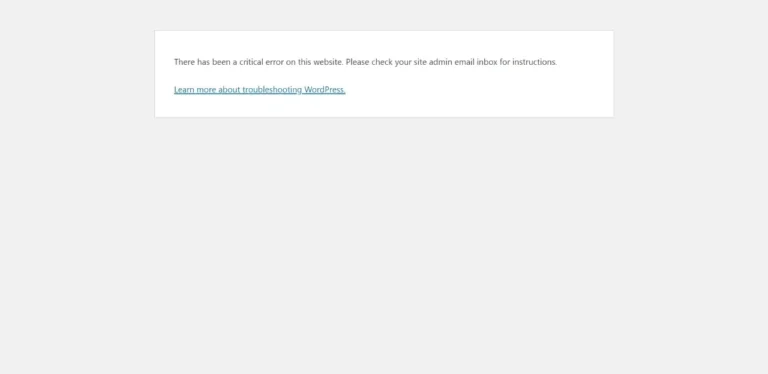
Instead, you got the white screen of death. Your homepage won’t load. The admin dashboard throws fatal errors. Your contact forms stopped working. Your store checkout page is completely broken.
Panic sets in. You have no backup. You don’t know which update caused the problem. Customers are emailing asking why they can’t complete purchases.
This nightmare happens to thousands of WordPress site owners every single day.
The cruel irony? You were trying to do the right thing. You were updating to stay secure. But one incompatible plugin update just destroyed your site in seconds.
Here’s the devastating reality: 73% of WordPress sites run outdated software, creating massive security vulnerabilities. But site owners are terrified to update because they’ve been burned before.
You’re caught in an impossible dilemma:
- Update your site → Risk breaking everything
- Don’t update → Leave massive security holes for hackers to exploit
At WebFixHQ, we safely update WordPress sites daily—handling core updates, plugin compatibility conflicts, and theme updates without breaking anything. This guide shows you exactly how to update WordPress safely, test for conflicts, and recover when updates go wrong.
Whether you handle updates yourself or need professional help, you’ll know precisely how to keep your site updated, secure, and stable.
Why WordPress Updates Are So Dangerous (And Why You Can’t Avoid Them)
WordPress updates aren’t optional maintenance. They’re critical security patches that protect against active exploits. But they’re also the #1 cause of broken WordPress sites.
The Update Dilemma: Security vs. Stability
Why updates are essential:
Without updates, your site has:
├── Unpatched security vulnerabilities (hackers exploit these daily)
├── Performance issues (old code runs slower)
├── Compatibility problems (can't use new plugins/themes)
├── Missing features (no access to improvements)
└── Compliance risks (outdated software violates some regulations)
Why updates are dangerous:
Updates can cause:
├── Plugin conflicts (Plugin A breaks Plugin B)
├── Theme incompatibility (layout destruction)
├── PHP version conflicts (fatal errors)
├── Database errors (corrupted data)
├── White screen of death (site completely inaccessible)
└── Lost functionality (features stop working)
The statistics are sobering:
Update RiskPercentageImpactSites running outdated software73%Vulnerable to known exploitsUpdates causing some issue42%Errors, conflicts, or breaksSites broken by plugin updates28%Required emergency fixesSites with no backup before update61%Can't rollback when problems occurUpdate-related downtimeAverage 4.2 hoursRevenue loss and reputation damage
Real Costs of Update Problems
E-commerce site example:
Scenario: WooCommerce update breaks checkout

Timeline of disaster:
├── Monday 9 AM: Applied WooCommerce update
├── Monday 9:15 AM: Checkout page shows fatal error
├── Monday 11 AM: Finally noticed (customers already complaining)
├── Monday 2 PM: Still trying to fix
├── Monday 6 PM: Hired emergency developer ($500)
├── Tuesday 10 AM: Finally resolved (25 hours downtime)

Financial impact:
├── Lost sales: $3,800 (25 hours × $152/hour average)
├── Emergency developer: $500
├── Abandoned carts never recovered: $1,200
├── Customer service time: 8 hours
├── Reputation damage: Immeasurable
└── Total measurable loss: $5,500 from one bad update
Service business example:
Scenario: WordPress core update causes white screen

Timeline:
├── Friday 4 PM: Updated WordPress core to latest version
├── Friday 4:05 PM: White screen of death appears
├── Friday 4:30 PM: Realized there's no backup
├── Friday 5 PM: Weekend starts, can't reach developer
├── Monday 9 AM: Finally gets professional help
├── Monday 2 PM: Site restored (70 hours downtime)

Impact:
├── Weekend traffic: 2,400 visitors saw nothing
├── Contact form submissions: 47 lost leads
├── Lead value: $600 each average
├── Lost opportunity: $28,200 in potential business
├── SEO impact: Google noticed downtime
└── Client trust: Multiple complaints received
These aren’t hypothetical scenarios. These are actual client situations we’ve resolved at WebFixHQ.
Why “Just Click Update” Fails
WordPress makes updating look deceptively simple. One click and you’re done. Except when you’re not.
What WordPress doesn’t tell you:
Behind that "Update" button:
├── No compatibility checking between plugins
├── No testing before applying to live site
├── No automatic backup creation
├── No rollback mechanism if it fails
├── No conflict detection
└── No warning about breaking changes
What actually happens during updates:
WordPress update process:
1. Downloads new files
2. Overwrites existing files
3. Runs database migrations (if needed)
4. Activates updated code immediately
5. Hopes everything works

If step 3 or 4 fails:
→ Your site breaks
→ No automatic rollback
→ You're left with broken site + no backup
The plugin dependency nightmare:
Your site has:
├── Plugin A (depends on PHP 7.4+)
├── Plugin B (depends on Plugin A v2.0+)
├── Plugin C (conflicts with Plugin A v3.0+)
├── Theme (depends on Plugin B features)
└── Custom code (uses deprecated Plugin A functions)

You update Plugin A to v3.0:
├── Plugin B breaks (needs v2.0 specifically)
├── Plugin C breaks (conflicts with v3.0)
├── Theme breaks (Plugin B doesn't work)
├── Custom code breaks (deprecated functions removed)
└── Your site is now completely broken
WordPress can’t predict these complex dependency chains. That’s why updates fail.
The Compounding Cost of Delayed Updates
Avoiding updates feels safer. It’s not.
What happens when you delay updates:
Month 1: Skip updates
├── 3 security patches released
├── 2 compatibility improvements released
└── Your site falls behind

Month 3: Still delaying
├── 12 security patches missed
├── Security vulnerability publicly disclosed
├── Hackers add your site to target list
└── Can't install new plugins (require newer WordPress)

Month 6: Major problems
├── 25+ updates stacked up
├── Updating now breaks 8 plugins simultaneously
├── Can't update one without updating all
├── Site gets hacked (known vulnerability exploited)
└── Recovery costs $2,500 + lost revenue

Cost of "staying safe" by not updating:
→ $2,500 hack cleanup
→ $800 in downtime losses
→ 40 hours of stress and recovery
→ $3,300+ total when you finally must update
The safe path costs $50-85 for professional updates monthly. The “avoid updates” path costs thousands when disaster strikes.
Warning Signs You Have Update & Compatibility Problems
How do you know if your site has dangerous update issues?
Your WordPress Dashboard Shows Update Notifications
The most obvious sign:
Dashboard → Updates shows:
├── WordPress 6.4.2 → 6.4.3 available
├── 12 plugin updates available
├── 2 theme updates available
└── PHP 7.4 → PHP 8.0 recommended
Every update notification is a security risk until applied. Hackers specifically target sites running outdated software with known vulnerabilities.
Translation of those notifications:
NotificationWhat It Really Means"WordPress X.X available"Security patch or major vulnerability fix"12 plugin updates"12 potential security holes in your site"PHP update recommended"Your server runs outdated, slow, insecure PHPNo updates for 2+ monthsYou're dangerously outdated
You Haven’t Updated in 30+ Days
Update frequency reality check:
Safe update schedule:
├── WordPress core: Update within 48 hours of release
├── Security plugins: Update within 24 hours
├── Other plugins: Update weekly (test first)
├── Themes: Update monthly (test carefully)
└── PHP: Update to 8.0+ immediately if on 7.4 or older

Your current schedule:
├── Last update: 4 months ago
├── WordPress version: 6.2 (current: 6.4.3)
├── Vulnerable plugins: 8
├── Outdated PHP: 7.3 (insecure, unsupported)
└── Risk level: CRITICAL
If you can’t remember your last update, you’re in danger.
Site Performance Has Degraded
Old software runs slower. You might notice:
Performance degradation signs:
├── Dashboard loads slower than before
├── Pages take longer to load
├── Database queries increasing
├── Memory errors appearing
├── Timeout errors on admin actions
└── Server resource usage climbing
Why outdated software slows your site:
- Old plugins use inefficient database queries
- Outdated PHP executes code 40-60% slower
- Old caching plugins can’t optimize modern code
- Accumulated plugin bloat from avoiding cleanup
- Old WordPress core lacks performance improvements
Security Plugins Show Vulnerabilities
If you run Wordfence, Sucuri, or similar security plugins:
Security scan results:
✗ WordPress core: Outdated (vulnerable)
✗ Plugin: Contact Form 7 v5.6 (known XSS vulnerability)
✗ Plugin: Old Gallery v2.1 (SQL injection risk)
✗ Theme: Builder Theme v3.2 (remote code execution)
✗ PHP: 7.3 (end of life, no security patches)

Vulnerability count: 8 critical, 12 high, 24 medium

Status: Your site is actively at risk
Don’t ignore these warnings. Each vulnerability is a door for hackers.
You Get PHP Version Warnings
Common PHP warnings:
├── "Your site is running PHP 7.3, which is outdated"
├── "Plugin X requires PHP 7.4 or higher"
├── "Deprecated function called in [file]"
├── "PHP 7.3 reaches end of life [date]"
└── "Upgrade to PHP 8.0 for security and performance"
PHP version support status:
PHP VersionStatusSecurity RiskPerformancePHP 5.6End of lifeCRITICALVery slowPHP 7.0-7.2End of lifeCRITICALSlowPHP 7.3End of lifeHIGHSlowPHP 7.4Security fixes onlyMEDIUMAcceptablePHP 8.0+Fully supportedLOWFastPHP 8.1-8.2RecommendedLOWVery fast
If you’re on PHP 7.3 or older, you have zero security support. Vulnerabilities won’t be patched.
Plugins Show Compatibility Warnings
Plugin notices you're ignoring:
├── "This plugin hasn't been tested with WordPress 6.4"
├── "Plugin X may not work with your current setup"
├── "Deprecated function warnings in error logs"
├── "Update required for WordPress 6.4 compatibility"
└── "This plugin was last updated 2 years ago"
Translation:
WarningReal Meaning"Not tested with WP 6.4"May break when you update WordPress"Last updated 2 years ago"Likely abandoned, security risk"Deprecated function"Will break on next WordPress update"Compatibility warning"Update now or face problems later
You’re Afraid to Update
The biggest warning sign is psychological:
You think about updating and feel:
├── Anxiety about breaking your site
├── Uncertainty about the process
├── Fear because you have no backup
├── Stress from past bad experiences
├── Overwhelm from technical complexity
└── Paralysis leading to inaction
This fear is valid. Updates can break sites. But the solution isn’t avoiding updates—it’s learning safe update processes (or hiring professionals who know them).
How to Safely Update WordPress: Professional Step-by-Step Process
Let’s eliminate the fear. Here’s exactly how professionals update WordPress sites without breaking them.
Phase 1: Pre-Update Preparation & Safety
Never update without preparation. These steps prevent disasters.
Step 1: Create Complete Backup
Backups are your safety net. Without them, broken updates become catastrophes.
What to backup:
Complete backup includes:
├── All WordPress files (wp-content, wp-includes, wp-admin)
├── Complete database (all tables)
├── .htaccess file
├── wp-config.php file
└── Any custom files outside WordPress directory
Method 1: Using UpdraftPlus (Recommended for beginners)
- Install UpdraftPlus from WordPress.org (free version works)
- Go to Settings → UpdraftPlus Backups
- Click “Backup Now”
- Check both boxes:
- ✓ Include your database in the backup
- ✓ Include your files in the backup
- Select remote storage (Google Drive, Dropbox) or download locally
- Click “Backup Now” and wait for completion
- Download backup to your computer (don’t just store on server)
Method 2: Using cPanel Backup (Hosting panel method)
Via cPanel:
1. Log into cPanel
2. Find "Backup" or "Backup Wizard"
3. Click "Full Backup" (includes everything)
4. Select backup destination (download or email)
5. Click "Generate Backup"
6. Wait for completion email
7. Download backup file to safe location
Method 3: Manual backup via FTP + phpMyAdmin (Most reliable)
Files backup:
1. Connect via FTP (FileZilla, Cyberduck)
2. Navigate to public_html (or your WordPress directory)
3. Right-click WordPress folder → Download
4. Wait for complete download (may take 10-60 minutes)
5. Store in safe location with clear date label
Database backup:
1. Access phpMyAdmin from cPanel
2. Select your WordPress database (left sidebar)
3. Click "Export" tab at top
4. Method: Quick
5. Format: SQL
6. Click "Go"
7. Save .sql file with date in filename
Backup verification checklist:
✓ Backup completed without errors
✓ Backup file downloaded to your computer
✓ Backup file size seems reasonable (not 0 KB or suspiciously small)
✓ Backup includes both files AND database
✓ Backup date/time clearly labeled
✓ You can locate the backup file easily
CRITICAL: Never update without a confirmed backup. This is non-negotiable.
Don’t have time for safe backups and updates? Get professional update management with guaranteed safety →
Step 2: Check Plugin & Theme Compatibility
Before updating WordPress core, verify your plugins and themes support the new version.
How to check compatibility:
- Visit WordPress.org plugin repository
- Search for each installed plugin
- Check “Tested up to” version on plugin page
- Compare with WordPress version you’re updating to
Example compatibility check:
Your current setup: WordPress 6.2
Update available: WordPress 6.4.3

Plugin compatibility check:
├── Yoast SEO: "Tested up to 6.4.3" ✓ SAFE
├── Contact Form 7: "Tested up to 6.4" ✓ SAFE
├── Old Gallery Plugin: "Tested up to 5.8" ✗ RISK
├── Custom Theme: Unknown ✗ TEST REQUIRED
└── WooCommerce: "Tested up to 6.4.3" ✓ SAFE

Conclusion: Update Yoast, CF7, WooCommerce first
Test Old Gallery Plugin compatibility before WordPress update
Red flags for incompatible plugins:
Warning SignRisk LevelAction RequiredNot updated in 2+ yearsHIGHFind alternative before updating"Tested up to" 2+ versions behindMEDIUMTest on staging firstDeveloper abandoned pluginHIGHReplace immediatelyKnown conflicts reportedHIGHResearch solutions firstCustom/nulled pluginCRITICALNever update without testing
Step 3: Test on Staging Site (CRITICAL)
Staging sites let you test updates safely without risking your live site.
What is a staging site?
Staging site = Complete copy of your live site where:
├── You can break things without consequences
├── Visitors never see it (hidden URL or password protected)
├── You test updates before applying to live site
├── Errors get caught and fixed safely
└── Only push to live after confirming everything works
Method 1: Creating staging site via hosting
Many quality hosts offer one-click staging:
SiteGround:
1. cPanel → WordPress → Staging
2. Click "Create Staging"
3. Wait 5-10 minutes for site copy
4. Access via provided staging URL

WP Engine:
1. Dashboard → Sites → Your Site
2. Click "Create Staging"
3. Access via staging URL

Kinsta:
1. MyKinsta Dashboard → Sites
2. Select site → Staging
3. "Create staging environment"
Method 2: Using WP Staging plugin (DIY method)
- Install WP Staging plugin (free version works)
- Go to WP Staging → Create New Staging Site
- Name your staging site (e.g., “staging” or “test”)
- Click “Start Cloning”
- Wait for completion (5-30 minutes depending on site size)
- Access via provided URL (usually yoursite.com/staging)
Method 3: Manual staging via subdomain
1. Create subdomain in cPanel (e.g., staging.yoursite.com)
2. Copy all WordPress files to subdomain directory
3. Export live database via phpMyAdmin
4. Import database to new database for staging
5. Update wp-config.php with new database credentials
6. Search/replace URLs in database (live URL → staging URL)
7. Test staging site loads correctly
How to use staging for safe updates:
Safe update workflow:
1. Update plugins on staging site
2. Test site thoroughly (all pages, forms, checkout, etc.)
3. Check for errors in debug log
4. Fix any conflicts found
5. Only after everything works: Apply same updates to live site
6. Re-test live site
7. Monitor for 24-48 hours
This process catches 95% of update problems before they affect visitors.
Step 4: Enable Debug Mode & Error Logging
WordPress error logging reveals hidden problems before they become disasters.
Enable WordPress debug mode:
Edit wp-config.php and add before “That’s all, stop editing”:
php
// Enable WP_DEBUG mode
define('WP_DEBUG', true);

// Log errors to file (don't display on site)
define('WP_DEBUG_LOG', true);
define('WP_DEBUG_DISPLAY', false);
@ini_set('display_errors', 0);

// Log database queries (optional - for finding slow queries)
define('SAVEQUERIES', true);
Where to find error logs:
Error logs location:
├── /wp-content/debug.log (WP_DEBUG_LOG enabled)
├── cPanel → Error Log (server error log)
└── Hosting control panel → Logs section
What debug logs reveal:
Example log entries:

PHP Fatal error: Uncaught Error: Call to undefined function old_function()
→ Plugin using deprecated function (will break on update)

PHP Warning: Missing argument 2 for plugin_function()
→ Plugin compatibility issue (update with caution)

PHP Deprecated: Function create_function() is deprecated
→ Old code needing modernization (future break risk)

WordPress database error Table 'wp_old_plugin' doesn't exist
→ Orphaned database tables (safe to clean)
Check debug.log after updates to catch errors immediately.
Step 5: Maintenance Mode (Optional but Recommended)
Put site in maintenance mode during updates to prevent visitors from seeing broken pages.
Method 1: Using plugin
- Install WP Maintenance Mode plugin
- Activate and enable maintenance mode
- Customize message: “Site updating, back in 15 minutes”
- Perform updates
- Test thoroughly
- Disable maintenance mode
Method 2: Manual maintenance mode
Create .maintenance file in WordPress root:
php
<?php
$upgrading = time();
?>
WordPress automatically shows maintenance message. Delete file when done.
When to use maintenance mode:
Use maintenance mode for:
✓ WordPress core updates
✓ Major plugin updates (WooCommerce, membership plugins)
✓ Multiple simultaneous updates
✓ Database migrations
✓ Theme updates

Skip maintenance mode for:
✓ Single small plugin updates
✓ Security patches (apply immediately)
✓ Sites with very low traffic
Phase 2: Safe Update Execution
Now you’re prepared. Time to actually update.
Step 1: Update Order Matters (Critical)
Never randomly update. Follow this specific order to minimize conflicts:
Correct update sequence:
1. Backup (already done in Phase 1)
2. Update security plugins first (Wordfence, Sucuri)
3. Update WordPress core
4. Update caching plugins
5. Update performance plugins
6. Update major plugins (WooCommerce, membership, LMS)
7. Update remaining plugins (least critical last)
8. Update themes last
9. Test thoroughly after each major update
Why this order matters:
Update StageReason for OrderSecurity plugins firstEnsures protection during update processWordPress core secondProvides foundation for plugin compatibilityCaching plugins thirdPrevents cached old versions causing issuesMajor plugins fourthAllows testing before updating dependenciesMinor plugins fifthLess critical, easier to troubleshootTheme lastDepends on all plugins being stable
Step 2: Update WordPress Core
On staging site first, then live site:
- Dashboard → Updates
- Check “WordPress X.X is available”
- Click “Update Now”
- Wait for completion (1-3 minutes typically)
- Refresh dashboard to confirm new version
What happens during core update:
WordPress core update process:
1. Downloads new WordPress files
2. Puts site in maintenance mode automatically
3. Deactivates plugins temporarily
4. Copies new files over old files
5. Runs database upgrade if needed
6. Reactivates plugins
7. Takes site out of maintenance mode
8. Update complete
If core update fails mid-process:
Recovery steps:
1. Don't panic - maintenance mode prevents visitors seeing errors
2. Check wp-content/debug.log for specific errors
3. Try refreshing browser and clicking "Update Now" again
4. If still failing, restore from backup
5. Research specific error message
6. Contact hosting support if server issue
After core update, immediately test:
✓ Visit homepage (loads correctly?)
✓ Visit a blog post (displays properly?)
✓ Check admin dashboard (accessible?)
✓ Test contact forms (working?)
✓ Check shopping cart/checkout (e-commerce sites)
✓ Test user login (membership sites)
✓ Review debug.log for new errors
Step 3: Update Plugins One at a Time
Never update all plugins simultaneously. Update individually to identify problems quickly.
Safe plugin update process:
For each plugin:
1. Note current version number
2. Check changelog for breaking changes
3. Click "Update Now" for that specific plugin
4. Wait for completion
5. Immediately test related functionality
6. Check debug.log for errors
7. If working: Move to next plugin
8. If broken: Immediately rollback this plugin
Example systematic plugin updates:
Plugin 1: Yoast SEO 21.0 → 21.5
├── Update completed
├── Test: Check meta descriptions still showing
├── Test: XML sitemap still accessible
├── Check: No errors in debug.log
└── Status: ✓ SUCCESS - Move to next plugin

Plugin 2: Contact Form 7 5.7 → 5.8
├── Update completed
├── Test: Submit test contact form
├── Result: Error - "Invalid submission"
├── Check: debug.log shows deprecated function
└── Status: ✗ PROBLEM - Rollback immediately

Rollback Plugin 2:
├── Plugins → Installed Plugins
├── Find Contact Form 7
├── Deactivate plugin
├── Delete plugin
├── Install previous version (5.7) from WordPress.org
├── Test form again
└── Works now - research fix before trying 5.8 again
Red flags during plugin updates:
Warning SignWhat It MeansAction"Fatal error" messagePlugin broke siteRollback immediately via FTPWhite screen after updateConflict or PHP errorAccess via FTP, delete plugin folderFeatures stop workingIncompatibilityRollback and test on stagingAdmin dashboard unreachableCritical conflictEmergency FTP rollback neededErrors in debug.logHidden problemsReview and fix before continuing
Step 4: Update Themes (Most Delicate)
Theme updates can destroy your design. Extra caution required.
Before updating themes:
Pre-theme-update checklist:
✓ Backup again (themes are risky)
✓ Screenshot your current design (all pages)
✓ Document any custom CSS you added
✓ Export theme settings (if customizer used)
✓ Note any child theme modifications
✓ Check theme changelog for breaking changes
Safe theme update process:
1. Dashboard → Appearance → Themes
2. Find theme with update available
3. Click "Update Now"
4. Wait for completion
5. IMMEDIATELY visit homepage
6. Check for layout breaks
7. Test all page templates
8. Verify mobile responsiveness
9. Check custom CSS still applied
10. Test navigation menus
Common theme update problems:
Layout breaks:
├── Sidebar disappears
├── Footer widgets missing
├── Header logo displaced
├── Menu styling broken
└── Mobile menu not working

Functionality breaks:
├── Shortcodes not rendering
├── Custom post types not displaying
├── Page builder elements broken
├── Contact forms missing
└── Sliders/galleries not working
If theme update breaks design:
Immediate rollback process:
1. Don't change anything else
2. Go to Appearance → Themes
3. Activate a default WordPress theme (Twenty Twenty-Four)
4. Via FTP/cPanel:
   - Navigate to wp-content/themes/
   - Delete the updated theme folder
   - Upload backup of old theme version
5. Reactivate your theme
6. Test site - should be back to normal
7. Research theme issue before trying update again
Child theme protection:
If using child themes, your customizations stay safe:
Child theme structure:
wp-content/themes/
├── parent-theme/ (gets updated)
└── child-theme/ (your customizations - never updated)

Updates to parent theme won't affect child theme customizations.
Always use child themes for customized sites.
Feeling overwhelmed by the update process? Let experts handle updates safely with zero risk →
Phase 3: Post-Update Testing & Verification
Updates completed. Now verify everything works.
Step 1: Comprehensive Functionality Testing
Critical pages to test after updates:
✓ Homepage
  - Loads completely
  - Images display
  - Navigation works
  - Sliders/animations function

✓ Blog/Posts
  - Individual posts load
  - Comments work (if enabled)
  - Share buttons function
  - Related posts display

✓ Contact Forms
  - Forms display correctly
  - Test submissions work
  - Email notifications arrive
  - Thank you messages show

✓ E-commerce (WooCommerce/EDD)
  - Product pages load
  - Add to cart functions
  - Cart page works
  - Checkout process completes
  - Payment gateways functional

✓ User Accounts (Membership sites)
  - Login works
  - Registration functional
  - Profile pages accessible
  - Content restrictions work
  - Password reset emails send

✓ Search Functionality
  - Search form works
  - Results display correctly
  - Filters function

✓ Mobile Experience
  - Responsive design intact
  - Touch interactions work
  - Mobile menu functions
  - Forms usable on mobile
Step 2: Check Error Logs
Even if site appears to work, hidden errors may exist.
Review debug.log for:

✗ Fatal errors: Site-breaking issues
✗ PHP warnings: Future compatibility problems
✗ Deprecated notices: Functions to be removed
✗ Database errors: Data integrity issues
✗ Plugin conflicts: Incompatibilities

Example concerning log entries:

PHP Fatal error: Uncaught Error: Call to undefined function
→ Plugin using removed function (will break soon)

PHP Warning: Cannot modify header information
→ Theme/plugin conflict (causes problems)

WordPress database error: [Table doesn't exist]
→ Plugin not properly updated (data loss risk)
If errors appear, don’t ignore them. They indicate problems that will worsen.
Step 3: Performance Check
Updates can affect speed. Verify performance hasn’t degraded.
Quick performance test:
Before updates (from Phase 1 notes):
- Load time: 2.1 seconds
- Page size: 1.8 MB
- Requests: 42

After updates:
- Load time: 2.3 seconds (+0.2s, acceptable)
- Page size: 1.9 MB (+100 KB, acceptable)
- Requests: 43 (+1 request, acceptable)

If significantly worse:
- Load time: 4.5 seconds (+2.4s, PROBLEM)
- Page size: 3.2 MB (+1.4 MB, PROBLEM)
- Requests: 78 (+36, PROBLEM)

→ An update broke performance, investigate immediately
Tools for performance testing:
- Google PageSpeed Insights
- GTmetrix
- Built-in browser DevTools Network tab
Step 4: Clear All Caches
Caches to clear after updates:
1. WordPress cache (via caching plugin)
   - WP Rocket: Settings → Clear Cache
   - W3 Total Cache: Performance → Clear All Caches
   - LiteSpeed Cache: Cache → Purge All

2. Object cache (if enabled)
   - Redis/Memcached: Flush cache via plugin or CLI

3. CDN cache (Cloudflare, etc.)
   - Cloudflare: Caching → Purge Everything
   - BunnyCDN: Purge URL or Purge All

4. Browser cache
   - Hard refresh: Ctrl+Shift+R (Windows) or Cmd+Shift+R (Mac)
   - Or clear browser cache completely

5. Server-level cache (if applicable)
   - Contact hosting support to clear server cache
Why cache clearing matters:
Without clearing cache:
├── Old plugin versions served from cache
├── Visitors see outdated/broken content
├── You can't tell if updates actually worked
├── Testing shows cached (old) version
└── Problems hidden until cache expires naturally
Always clear ALL caches after updates.
Step 5: Monitor for 24-48 Hours
Problems don’t always appear immediately.
Post-update monitoring checklist:
Next 24-48 hours:
✓ Check error logs twice daily
✓ Monitor site traffic/behavior in analytics
✓ Watch for customer complaints/support tickets
✓ Test forms/checkout periodically
✓ Monitor server resource usage
✓ Check for increased 404 errors
✓ Review search console for crawl errors
Set up monitoring alerts:
UptimeRobot (free):
- Monitors site uptime every 5 minutes
- Emails you if site goes down
- Tracks response times

Wordfence/Sucuri:
- Email alerts for security issues
- Notifications of failed logins
- Traffic spike alerts
If problems arise within 48 hours, they’re likely update-related.
How to Fix Common WordPress Update Problems
Even with careful updates, problems happen. Here’s how to fix them.
Problem 1: White Screen of Death (WSOD)
Symptoms:
✗ Blank white screen (no error message)
✗ Site completely inaccessible
✗ Dashboard won't load
✗ No content displays
Causes:
- PHP fatal error from incompatible plugin
- Memory limit exceeded
- Theme/plugin conflict
- Corrupted WordPress files
Fix #1: Increase PHP memory limit
Edit wp-config.php (via FTP/cPanel File Manager):
php
// Add before "That's all, stop editing"
define('WP_MEMORY_LIMIT', '256M');
define('WP_MAX_MEMORY_LIMIT', '512M');
Save, refresh site. If still white, continue to Fix #2.
Fix #2: Disable all plugins via FTP
Via FTP:
1. Connect to your site
2. Navigate to wp-content/
3. Rename "plugins" folder to "plugins-disabled"
4. Try accessing site
5. If site works: plugins caused issue
6. Rename back to "plugins"
7. Rename each plugin folder individually to find culprit:
   - Rename plugin-a to plugin-a-disabled
   - Test site
   - If works: plugin-a was the problem
   - Delete plugin-a folder
8. Site should work now
Fix #3: Switch to default theme
Via phpMyAdmin:
1. Access phpMyAdmin from cPanel
2. Select WordPress database
3. Find wp_options table
4. Search for option_name = 'template'
5. Change option_value to 'twentytwentyfour'
6. Search for option_name = 'stylesheet'
7. Change option_value to 'twentytwentyfour'
8. Refresh site - should load with default theme
Fix #4: Restore from backup
If nothing else works:
1. Access cPanel → Backup
2. Restore most recent backup (from before updates)
3. Or manually via FTP:
   - Delete all WordPress files
   - Upload backup files
   - Import backup database via phpMyAdmin
4. Site restored to pre-update state
5. Research specific update issue before trying again
Problem 2: Fatal PHP Errors
Symptoms:
Error message displays:
"Fatal error: Uncaught Error: Call to undefined function..."
"Parse error: syntax error, unexpected..."
"Fatal error: Maximum execution time exceeded..."
Common causes & fixes:
Error: Call to undefined function
Meaning: Plugin/theme calling function that doesn't exist

Fix:
1. Note which file shows in error (e.g., /plugins/plugin-name/file.php)
2. Via FTP, delete that plugin folder
3. Site should work
4. Don't reinstall plugin until compatibility confirmed
Error: Parse error, unexpected T_STRING
Meaning: PHP syntax error in code

Fix:
1. Check PHP version compatibility
2. If recently updated PHP: Plugin may not support new version
3. Downgrade PHP temporarily via cPanel
4. Or update/replace incompatible plugin
Error: Maximum execution time exceeded
Meaning: Script taking too long to execute

Fix via .htaccess:
php_value max_execution_time 300

Or wp-config.php:
set_time_limit(300);
Problem 3: Database Connection Errors
Symptoms:
"Error establishing a database connection"
Site won't load
Dashboard inaccessible
Causes:
- Incorrect database credentials
- Database server down
- Corrupted database
- Database user privileges revoked
Fix #1: Verify database credentials
Check wp-config.php:
php
// These must match your actual database info
define('DB_NAME', 'your_database_name');
define('DB_USER', 'your_database_user');
define('DB_PASSWORD', 'your_database_password');
define('DB_HOST', 'localhost'); // or specific host
Compare with hosting control panel → MySQL Databases
Fix #2: Repair database
Add to wp-config.php:
php
define('WP_ALLOW_REPAIR', true);Visit: yoursite.com/wp-admin/maint/repair.php
Click “Repair Database”
Remove that line from wp-config.php after repair (security risk).
Fix #3: Contact hosting support
Database server issues require host assistance:
- Server crashed/restarting
- Database user permissions changed
- Server configuration problems
Problem 4: Plugin Conflicts
Symptoms:
✗ Specific features stop working
✗ Admin dashboard partially broken
✗ Forms don't submit
✗ Shortcodes display as text
✗ JavaScript errors in console
Identify conflicting plugins:
Systematic conflict detection:
1. Deactivate all plugins (via dashboard or FTP)
2. Test - does problem disappear?
3. If yes: Plugins caused it
4. Reactivate plugins one by one:
   - Activate Plugin A → test
   - Activate Plugin B → test
   - Activate Plugin C → problem returns!
5. Plugin C conflicts with something
6. Test Plugin C alone (all others off)
   - If works alone: Conflict with another plugin
   - If breaks alone: Plugin C is broken
7. Find alternative to Plugin C or fix conflict
Common plugin conflicts:
Plugin TypeOften Conflicts WithSolutionCaching pluginsOther caching pluginsUse only ONE caching pluginSEO pluginsOther SEO pluginsUse only ONE SEO pluginSecurity pluginsCaching/optimizationConfigure exclusions properlyPage buildersTheme buildersChoose one systemBackup pluginsOther backup pluginsUse only one
Fix conflicts by:
- Updating both conflicting plugins
- Adjusting plugin settings to avoid overlap
- Replacing one plugin with alternative
- Contacting plugin support for known conflicts
Problem 5: Broken Layouts & Design
Symptoms:
✗ Sidebar disappeared
✗ Footer moved to wrong position
✗ Images not displaying
✗ CSS styles not loading
✗ Mobile menu broken
Quick fixes:
Fix #1: Regenerate CSS
Some themes cache CSS:
1. Appearance → Customize
2. Make tiny change (add space to site title)
3. Click "Publish"
4. Forces theme to regenerate CSS
5. Check if layout fixed
Fix #2: Clear all caches
Layout breaks often caused by cached old CSS:
- Clear WordPress cache
- Clear CDN cache
- Clear browser cache
- Hard refresh with Ctrl+Shift+R
Fix #3: Check for CSS file errors
Via browser DevTools:
1. Right-click page → Inspect
2. Console tab
3. Look for errors like:
   "Failed to load resource: style.css"
   "404 (Not Found) main.css"
4. CSS file missing or moved
5. Verify file exists via FTP
6. Re-upload CSS file if missing
Fix #4: Restore theme customizations
If you documented custom CSS (Phase 1):
1. Appearance → Customize → Additional CSS
2. Paste your saved custom CSS
3. Publish changes
4. Layout should restore
Broke your site and can’t fix it? Get emergency recovery + safe updates →
Problem 6: Performance Degradation After Updates
Symptoms:
Site slower after updates:
├── Load time increased 2+ seconds
├── Dashboard sluggish
├── Pages timeout
├── Server resource alerts
└── Hosting threatening suspension
Causes & fixes:
Cause #1: Updated plugin is poorly coded
Identify resource-heavy plugins:
1. Install Query Monitor plugin
2. Load slow page
3. Check Query Monitor report
4. See which plugin causes most queries/time
5. Replace that plugin with better alternative
Cause #2: Database needs optimization
After updates, optimize database:
1. Install WP-Optimize
2. Run full optimization
3. Clear transients
4. Optimize tables
5. Test speed improvement
Cause #3: Cache broken by updates
Rebuild cache:
1. Clear all caches completely
2. Disable caching plugin
3. Reactivate caching plugin
4. Configure from scratch
5. Test performance
Advanced Update Strategies for Complex Sites
Large or complex sites need extra precautions.
Strategy 1: Rolling Updates (Minimize Risk)
Never update everything at once on production sites.
Rolling update schedule:
Week 1: Security updates only
├── Security plugins
├── WordPress core (if security patch)
└── Critical security fixes

Week 2: Major plugins (1-2 at a time)
├── WooCommerce
├── Membership plugins
└── LMS plugins

Week 3: Minor plugins (3-5 at a time)
├── SEO plugins
├── Forms
└── Utility plugins

Week 4: Theme updates
├── Test on staging
├── Apply to production
└── Monitor carefully
Benefits:
- If problems occur, you know exact cause
- Limited impact per update cycle
- Time to fix issues before next update
- Production site stays stable
Strategy 2: Blue-Green Deployment
For mission-critical sites that can’t have downtime.
How it works:
Setup:
├── Blue environment: Current live site
└── Green environment: Staging with updates applied

Process:
1. Clone live site to green environment
2. Apply all updates to green
3. Test thoroughly (days/weeks)
4. When perfect: Switch DNS to green
5. Green becomes new live (blue)
6. Old blue becomes new staging (green)
7. Zero downtime for visitors
Requires:
- Quality hosting with staging
- DNS management access
- Technical expertise
- Time for thorough testing
Strategy 3: Canary Releases
Test updates on small percentage of traffic first.
Implementation:
1. Update staging site
2. Route 5% of traffic to staging
3. Monitor for errors/issues
4. If good: Increase to 25%
5. If still good: Increase to 100%
6. If problems: Rollback before affecting everyone
Requires:
- Load balancer or traffic routing
- Analytics to monitor different versions
- Technical infrastructure
- Enterprise hosting
WordPress Update Maintenance Schedule
Consistent updates prevent disaster. Here’s your schedule.
Daily Monitoring (5 minutes)
✓ Check for WordPress security updates
✓ Check security plugin notifications
✓ Review error logs for new issues
✓ Monitor uptime status
✓ Check for urgent plugin security fixes
Critical security updates should be applied within 24 hours.
Weekly Update Routine (30-60 minutes)
✓ Review all available updates
✓ Check changelogs for breaking changes
✓ Backup site completely
✓ Update 3-5 plugins on staging
✓ Test updated plugins
✓ Apply working updates to live site
✓ Clear all caches
✓ Test critical functionality
✓ Monitor for 24 hours
Monthly Comprehensive Updates (2-3 hours)
✓ Full site backup (download locally)
✓ Update WordPress core (if available)
✓ Update all remaining plugins
✓ Update themes
✓ Test all site functionality
✓ Optimize database
✓ Review and remove unused plugins
✓ Check PHP version status
✓ Review security scan results
✓ Performance audit
✓ Update documentation
Quarterly Deep Maintenance (4-6 hours)
✓ Full site audit
✓ Review all installed plugins (remove unused)
✓ Check for abandoned plugins (find replacements)
✓ Theme compatibility check
✓ PHP version upgrade (if needed)
✓ Server optimization review
✓ Security hardening review
✓ Backup strategy review
✓ Disaster recovery test
✓ Update emergency contact procedures
WordPress Update Best Practices Checklist
Save this checklist for every update:
✅ Pre-Update Checklist
□ Complete backup created (files + database)
□ Backup downloaded to safe location
□ Backup verified (not corrupted/empty)
□ Staging site created or available
□ Debug mode enabled
□ Maintenance mode ready (if needed)
□ Plugin compatibility checked
□ Theme compatibility verified
□ Changelog reviewed for breaking changes
□ Emergency rollback plan documented
□ Time allocated for testing
□ Low-traffic time selected for updates
✅ Update Execution Checklist
□ Updates applied to staging first
□ Staging tested thoroughly
□ Issues fixed on staging
□ Updates applied in correct order:
  □ Security plugins
  □ WordPress core
  □ Caching plugins
  □ Major plugins
  □ Minor plugins
  □ Theme
□ One plugin updated at a time
□ Testing after each update
□ Error logs checked after each update
✅ Post-Update Checklist
□ All caches cleared (WordPress, CDN, browser)
□ Homepage tested
□ Critical pages tested (contact, checkout, login)
□ Forms tested (contact, registration, checkout)
□ Mobile responsiveness verified
□ Error logs reviewed
□ Performance checked (not degraded)
□ Security scan run
□ Uptime monitoring confirmed
□ 24-48 hour monitoring period started
□ Backup of updated site created
□ Documentation updated
When to Get Professional WordPress Update Services
DIY updates work for simple sites with time and technical skills. Professional services make sense when:
You Can’t Afford Downtime
Mission-critical sites:
E-commerce sites:
├── $500-5,000+ daily revenue
├── Every hour down = significant loss
├── Customer trust depends on reliability
└── Professional updates: $55-85 vs. potential $5,000+ loss

Membership/SaaS sites:
├── Paying subscribers expect 99.9% uptime
├── Downtime triggers cancellations
├── Reputation damage from outages
└ Professional management prevents churn

Lead generation sites:
├── Every hour captures $200-2,000 in leads
├── Broken forms = lost business
├── Competitors capture your market share
└── Guaranteed uptime protects revenue
ROI calculation:
Your site revenue: $3,000/day
Downtime risk: 4-8 hours (typical DIY issue)
Potential loss: $500-1,000

Professional update service: $55-85
Risk eliminated: 100%
ROI: 588-1,818% return on investment
You Lack Technical Expertise
Signs you need professionals:
You don't know how to:
✗ Access site via FTP
✗ Use phpMyAdmin
✗ Edit wp-config.php safely
✗ Read PHP error messages
✗ Fix plugin conflicts
✗ Restore from backups
✗ Use staging environments
✗ Debug WordPress issues
Attempting updates without expertise risks:
- Permanent data loss
- Extended downtime (days instead of hours)
- Expensive emergency developer fees ($150-500/hour)
- Corrupted databases
- Complete site loss
Professional services include:
- Expert execution (zero learning curve)
- Guaranteed results
- Emergency rollback capability
- Post-update support
- Documentation of changes
You Have Complex Custom Code
Custom code requires expert updates:
Sites with custom development:
├── Custom plugins built specifically for you
├── Heavily modified themes
├── Custom post types and taxonomies
├── Complex integrations (CRM, ERP, APIs)
├── Custom database tables
└── Specialized functionality

Risk: Standard updates break custom code
Solution: Professionals test and fix custom code conflicts
You Want Preventive Maintenance
Reactive vs. proactive approach:
Reactive (DIY):
├── Wait for problems to occur
├── Scramble to fix emergencies
├── Learn through breaking things
├── Higher total cost (emergency fixes expensive)
└── Stress and lost time

Proactive (Professional):
├── Regular scheduled updates
├── Problems caught before they affect visitors
├── Testing prevents disasters
├── Lower total cost (prevention cheaper than cure)
└── Peace of mind
Professional maintenance includes:
- Weekly or monthly update cycles
- Continuous monitoring
- Proactive conflict resolution
- Performance optimization
- Security hardening
- Priority support
What Professional WordPress Update Services Deliver
Complete Safety & Testing
Professional update process:
1. Pre-update audit
   ├── Review all pending updates
   ├── Check compatibility databases
   ├── Research known conflicts
   ├── Plan update strategy
   └── Document current state

2. Staging environment testing
   ├── Clone live site to staging
   ├── Apply all updates to staging
   ├── Comprehensive functionality testing
   ├── Fix any conflicts found
   └── Verify everything works perfectly

3. Safe production deployment
   ├── Complete backup of live site
   ├── Apply tested updates to live
   ├── Monitor during deployment
   ├── Immediate rollback if issues
   └── Post-update verification

4. Ongoing monitoring
   ├── Watch for errors 24-48 hours
   ├── Performance monitoring
   ├── Security scanning
   ├── Proactive issue resolution
   └── Detailed reporting
What you get:
✓ Zero risk to live site (staging tested first)
✓ Complete backups (automatic rollback if needed)
✓ Expert conflict resolution
✓ Performance optimization
✓ Security hardening
✓ Detailed documentation
✓ Priority support if issues arise
✓ Peace of mind guarantee
Guaranteed Results
Professional update guarantees:
If we break something:
├── We fix it free (no additional charges)
├── Restore from backup if needed
├── Compensate for downtime (per agreement)
└── No cost to you for our errors

You get:
├── Fully updated WordPress core
├── All plugins updated and tested
├── Theme updated and verified
├── Site faster or same speed (never slower)
├── Zero functionality loss
├── Complete before/after report
└── 30-day monitoring and support
Money-back guarantee: If updates cause unfixable problems, full refund.
Time Savings
DIY update time investment:
Your time required:
├── Learning safe update procedures: 3-5 hours
├── Creating backups: 30-60 minutes
├── Setting up staging: 1-2 hours
├── Testing updates: 2-4 hours
├── Fixing conflicts: 2-8 hours (if issues occur)
├── Post-update testing: 1-2 hours
└── Total: 10-22 hours

Your hourly value: $50/hour
Time cost: $500-1,100 of your time
Success rate: 60-70% (30-40% encounter major issues)
Professional update service:
Your time investment: 15 minutes (consultation)
Timeline: 24-48 hours complete
Success rate: 99%+ (guaranteed)
Cost: $35-85 depending on complexity

Time saved: 9-21 hours
Value of time saved: $450-1,050
Net benefit: $365-965 saved
Plus: Zero stress, guaranteed results
Ongoing Protection
Premium maintenance plans include:
Monthly WordPress Care:
├── Weekly update cycles
├── Continuous security monitoring
├── Daily automated backups
├── Performance optimization
├── Malware scanning
├── Uptime monitoring (99.9% guarantee)
├── Priority support (24/7)
├── Monthly performance reports
└── Proactive issue prevention

Annual savings:
├── Zero emergency developer fees (save $500-2,000)
├── Zero downtime losses (save $1,000-10,000)
├── Zero hack recovery costs (save $1,500-5,000)
├── Your time saved (worth $6,000-12,000)
└── Total value: $9,000-29,000/year

Cost: $85/month ($1,020/year)
ROI: 783-2,743% return on investment
Get Safe WordPress Updates Now
Is your WordPress site outdated and at risk?
Stop gambling with “click and pray” updates. Get professional update management that guarantees:
- ✅ Complete backup before any changes
- ✅ Staging site testing (catch problems before they go live)
- ✅ Expert conflict resolution
- ✅ Zero downtime guarantee
- ✅ Immediate rollback if anything goes wrong
- ✅ 30-day post-update monitoring
- ✅ Complete before/after documentation
- ✅ Money-back guarantee if we break anything
Conclusion: Safe Updates = Secure, Stable WordPress
WordPress updates don’t have to be terrifying. With proper processes, they become routine maintenance instead of risky gambles.
The choice is clear:
Continue avoiding updates:
├── Security vulnerabilities pile up
├── Hackers exploit known weaknesses
├── Performance degrades over time
├── Eventually forced to update everything at once
└── Massive conflicts, extended downtime, expensive recovery

Or implement safe update practices:
├── Regular, tested updates
├── Site stays secure and stable
├── Performance remains excellent
├── Problems caught and fixed early
└── Peace of mind and protected business
What successful site owners do:
DIY path (works for many):
├── Follow this guide systematically
├── Always backup before updates
├── Use staging sites for testing
├── Update regularly (weekly schedule)
├── Monitor carefully after updates
└── Invest time learning safe processes

Professional path (eliminates risk):
├── Monthly update service
├── Experts handle everything
├── Guaranteed safety and uptime
├── Your time stays focused on business
├── Zero technical expertise needed
└── Complete peace of mind
Either path works. The critical action is updating regularly with proper safety measures.
Your competitors maintain updated sites. Search engines reward secure sites. Customers trust professional sites that work flawlessly.
Update your WordPress site safely. Your business depends on it.
Get Safe WordPress Updates Now →
Same-day service. Zero downtime guarantee. Complete safety. Full support.
Or implement this guide yourself—save it, follow the checklists, and keep your site updated safely with systematic processes that work.
The choice is yours. The time is now.
Need help deciding if DIY or professional updates make sense for your site? Consider your revenue at risk, your technical expertise, and the value of your time. For most business sites generating $2,000+ monthly, professional updates deliver immediate positive ROI.